
History pages
Formaticon maintains separate history pages for each workflow type. All three are accessible from the top navigation menu.
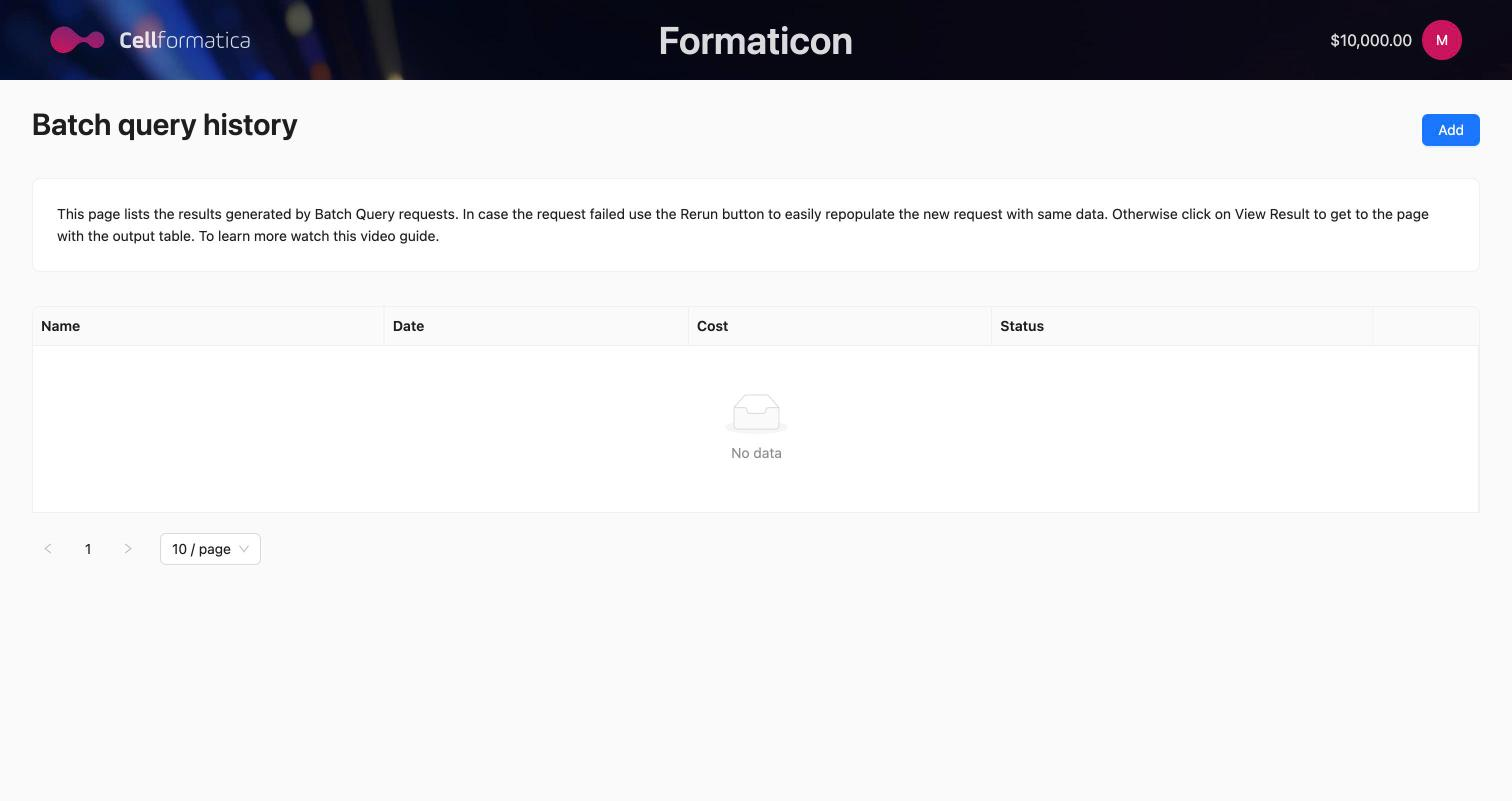
Batch Query History
Visit Batch Query History to see all your past batch queries. Each row shows:
- Question: the research question you submitted.
- Status: SUCCESS, PENDING, or FAILED.
- Date: when the query was submitted.
- Cost: credits deducted on completion.
- Actions: View Result, Run Again, Share.
Click View Result to open the interactive table and scatter plot. Click Run Again to open the query form pre-filled with your previous inputs.
Detailed Report History
Visit Detailed Report History to see your generated reports. Columns include report name, status, date, cost, and download buttons for PDF and DOCX files. Completed reports remain available for download indefinitely.
Bioscientist Task History
Visit Bioscientist Task History to see all your agent tasks. Each row shows the task name, question summary, status badge, creation date, and charged amount. Click a row or the task name to open the task detail page, where you can download the output archive, input attachments, and session log.
All history pages support pagination — use the navigation controls at the bottom to browse older runs. Results are sorted by date, newest first.
Sharing results
Generating a share link
On any result page or history row, click the Share button. A modal appears with a URL containing a unique access token. Click Copy to copy the URL to your clipboard. Share this URL with anyone you want to give access to.
What shared viewers can see
Anyone with a share link can:
- View the result (table, scatter plot, report status)
- Download files (CSV, PDF, DOCX, output archive, session log)
Shared viewers cannot:
- Re-run the query or task
- Generate additional share links
- Access other parts of your account
- See your credit balance or billing information
Share links do not expire automatically. To revoke access, contact support — there is currently no self-service revoke button.
Billing and credits
How the credits system works
Formaticon uses a pre-purchased credit system. Credits are consumed when a run completes successfully — you are not charged at the time of submission, and a failed run does not deduct credits.
The cost of each run depends on the AI compute used: primarily the number of Claude API tokens consumed during the research and report-generation pipeline. More complex questions, longer requested documents, and larger gene lists will cost more. The submission form always shows a cost estimate before you confirm — you can cancel if the estimate is higher than expected.
Viewing your balance
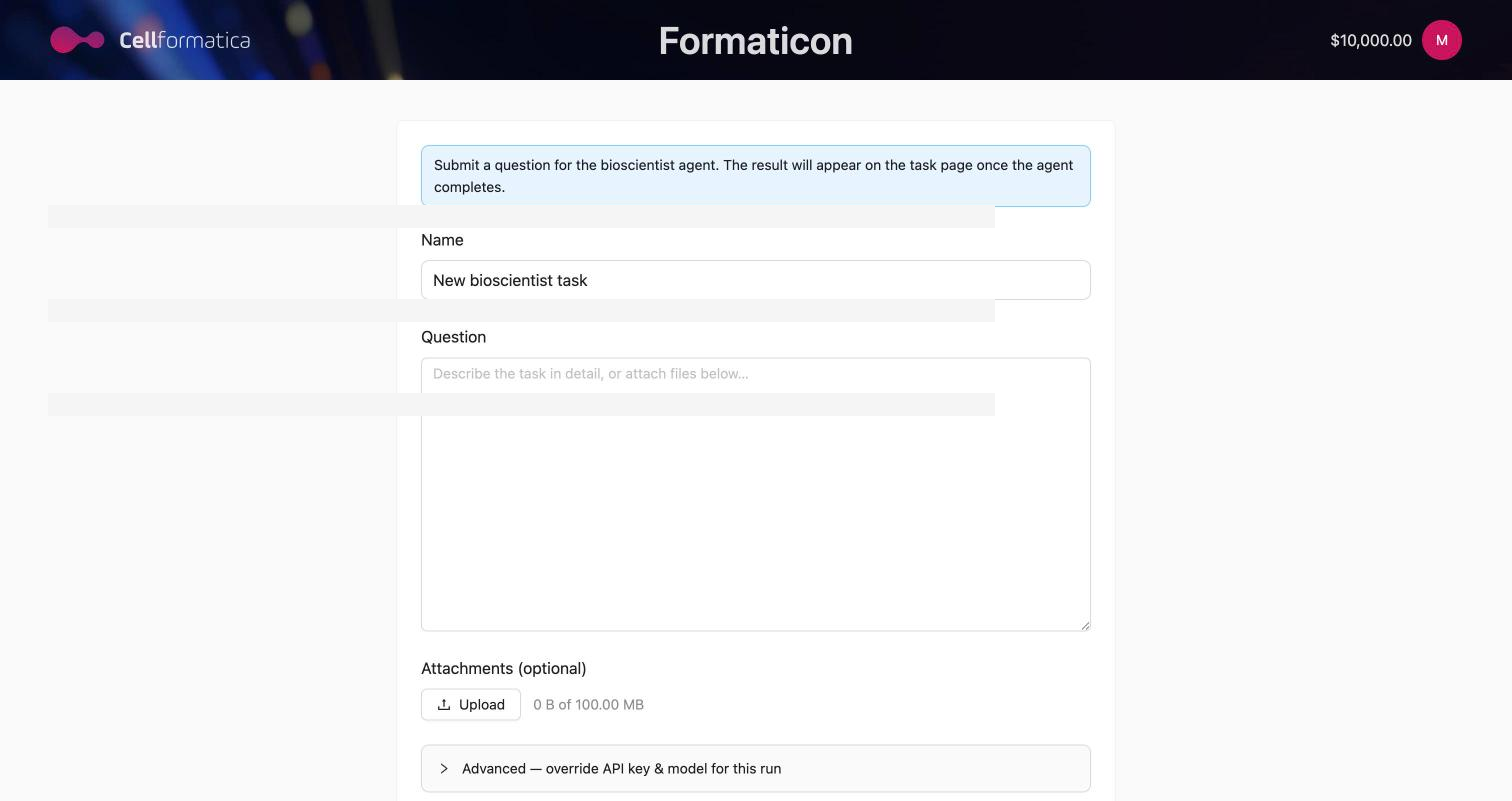
Your credit balance is visible in the top-right corner of every page once you are logged in. The balance updates in real time after each completed run.
Adding credits
-
Go to your Profile Click your name or avatar in the top-right corner and select Profile.
-
Click "Add credits" or "Purchase credits" This opens a Stripe-hosted checkout page.
-
Complete the Stripe payment Enter your card details and confirm. Credits are added to your account immediately on payment success and reflected in the top-right balance.
Stripe is a PCI-compliant payment processor. Formaticon does not store your card details.
The NOT_ENOUGH_MONEY error
If you submit a run and the estimated cost exceeds your current credit balance, the request is rejected with a NOT_ENOUGH_MONEY error before any processing begins. To resolve this:
- Note the estimated cost shown in the confirmation modal.
- Go to Profile → Billing and add enough credits to cover the estimated cost.
- Return to your workflow and resubmit.
When are credits deducted?
Credits are deducted only when a run reaches SUCCESS status. If a run fails at any stage, no credits are charged and your balance is unchanged. For the Bioscientist Agent, the final cost (shown on the task detail page as "Charged: $X.XX") may differ slightly from the estimate because the actual number of AI tokens consumed can vary.
Refunds
If you were charged for a run that produced incorrect or incomplete results, please contact Cellformatica support via the Cellformatica website. Refunds are evaluated on a case-by-case basis.