
Creating an account
Go to formaticon.cellformatica.com/register to sign up. The registration form requires four fields:
- Name: your full name as it will appear on your account.
- Email: used for login and any notifications. Must be unique.
- Phone: optional for contact purposes.
- Password: choose a secure password of at least 8 characters.
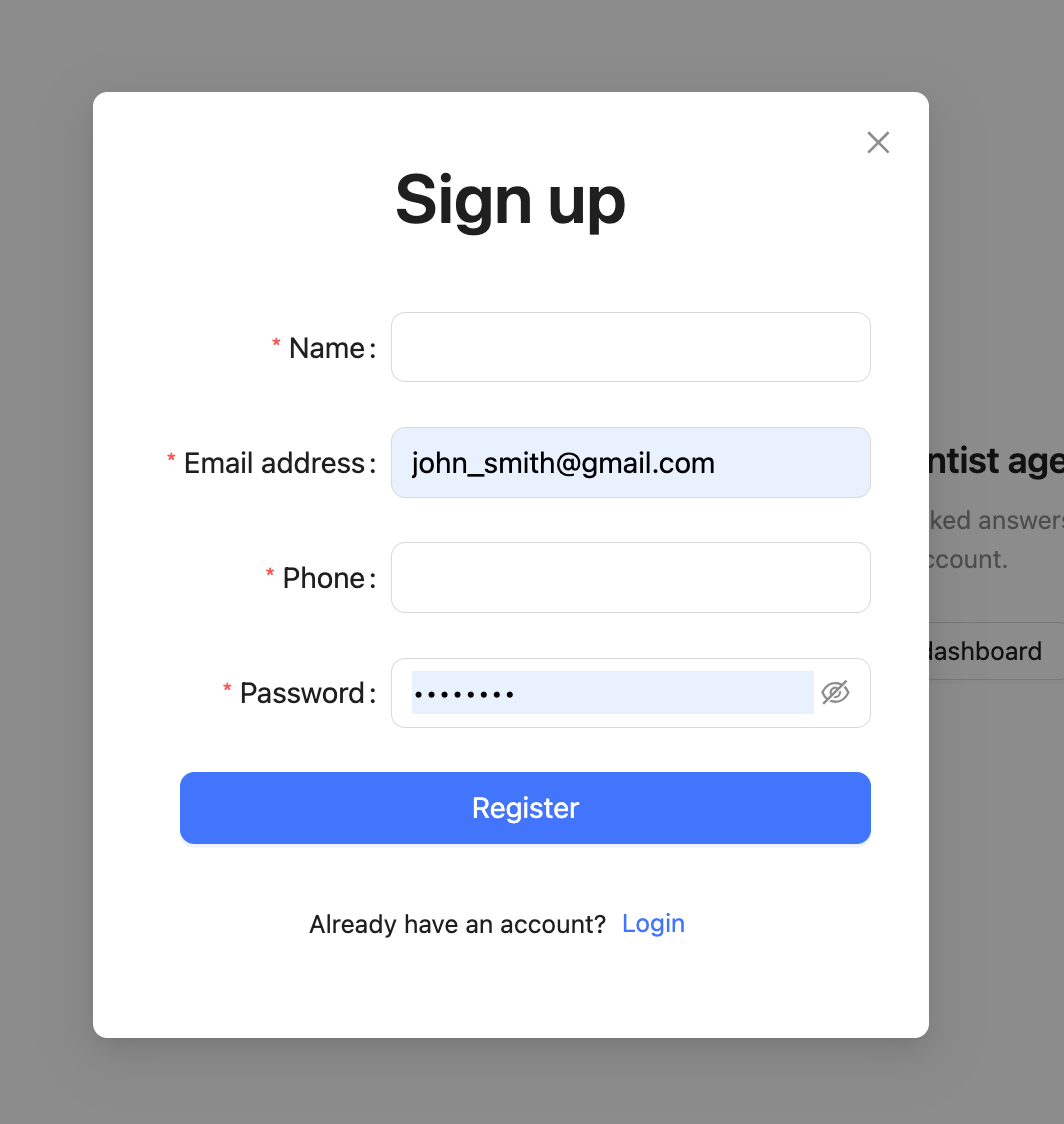
After submitting, you are automatically logged in and redirected to the dashboard.
Logging in
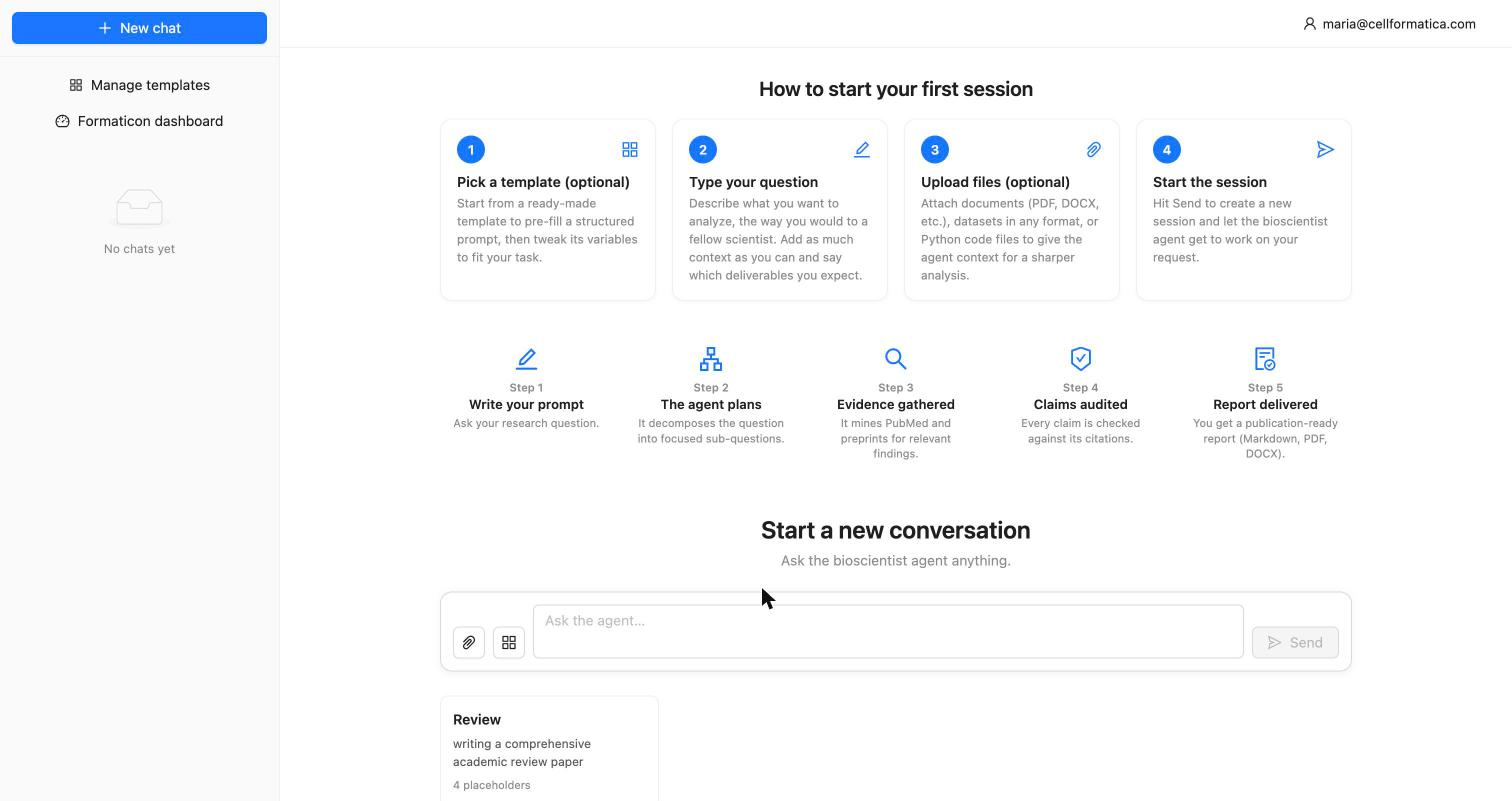
Visit formaticon.cellformatica.com/login and enter your registered email and password. Your session persists in a secure browser cookie — you will remain logged in across browser restarts until you log out manually from the profile menu.
Managing your account
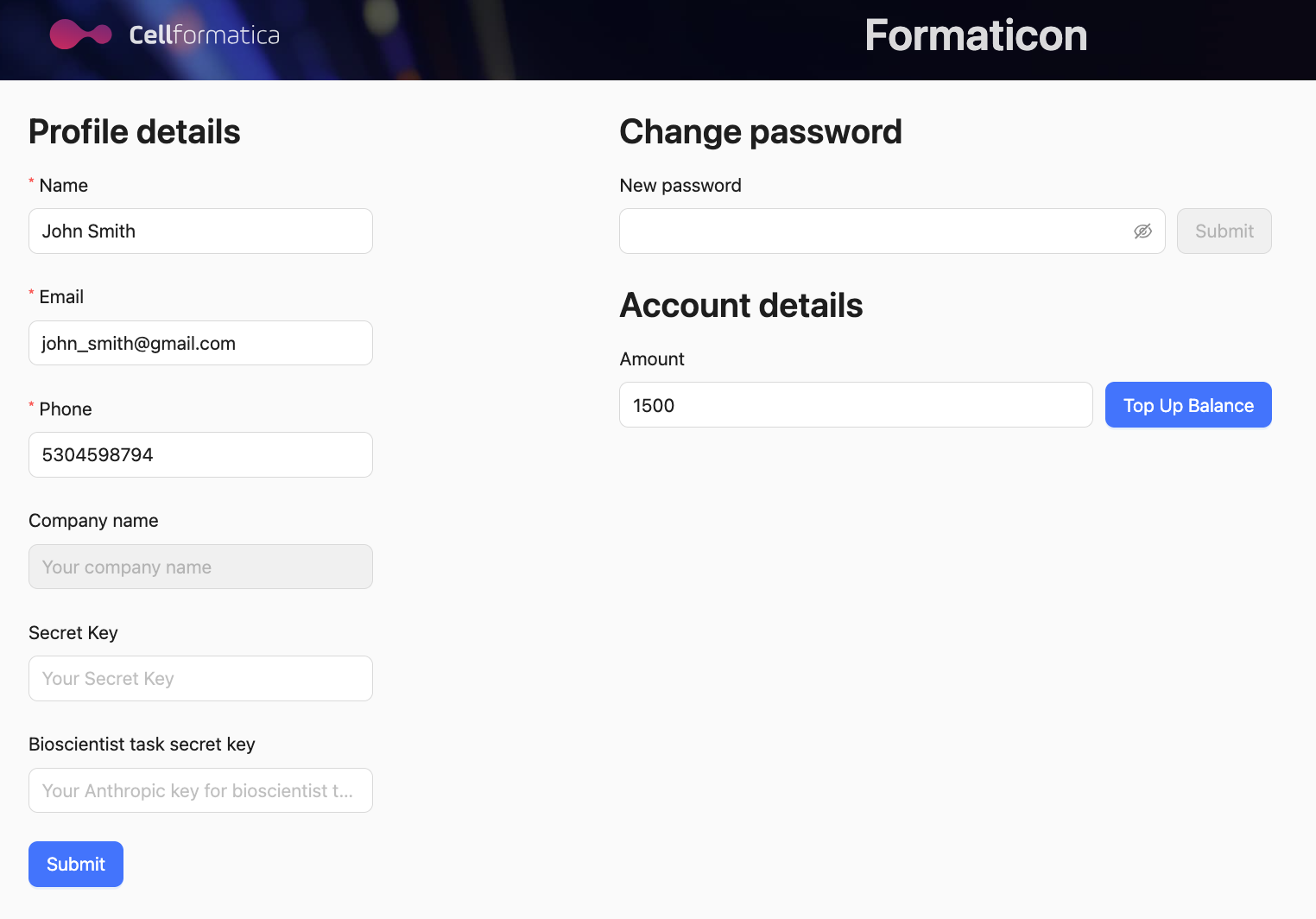
Once logged in you can manage your account by clicking on your account name in the top right corner of the AI scientist interface or by clicking at red circle with a letter in the top right corner of Formaticon legacy dashboard and selecting Profile or by visiting https://formaticon.cellformatica.com/profile There you can update your credentials including resetting the password and purchasing the computational credits (Top Up Balance ) through Stripe transaction.
Password reset
If you forget your password, use the Forgot password link on the login page. Enter your registered email address; you will receive a reset link. Click it and enter a new password. If the email does not arrive within a few minutes, check your spam folder or contact support via the Cellformatica website.
Using your own AI vendor keys
You can use your own AI vendor keys (openai and anthropic) by entering them into the corresponding fields. This will lower your computational bill. Otherwise Cellformatica will use its own keys for the run. In many cases the latter option is better due to higher rate limits that Cellformatica has with these vendors.
Understanding credits
Formaticon uses a pay-per-use credit system. Each research run deducts credits based on the AI compute consumed, primarily Anthropic Claude API tokens and any auxiliary API calls during the analysis. Credits are deducted only on successful completion; failed runs are not charged.
Checking your balance
Your current credit balance is shown in the top-right corner of every page once you are logged in. The balance updates immediately after each run completes.
Adding credits
-
Open your Profile Click your name or avatar in the top-right corner and select Profile.
-
Navigate to Billing On the Profile page, find the billing section. Click Add credits or Purchase credits.
-
Complete payment via Stripe You are redirected to a secure Stripe checkout page. Enter your card details and confirm. Credits are added to your account immediately on payment success.
NOT_ENOUGH_MONEY error. Add credits before resubmitting. See History, Sharing & Billing for details.
Choosing the right workflow
Formaticon offers three research workflows. The table below helps you decide which to use based on your input and the type of output you need.
| Criterion | Batch Query | Detailed Report | Bioscientist Agent |
|---|---|---|---|
| Your input | A question + a list of entities (genes, drugs, diseases, cell types) | A question + a focused gene list (up to ~30) | Any open-ended research question or task description |
| Output type | Interactive ranked table + scatter plot + CSV download | Multi-section PDF/DOCX report | Full PDF/DOCX white paper with figures, hypotheses, PRISMA protocol, and references |
| Typical runtime | A few minutes | 30–90 minutes | 1–2.5 hours |
| Best for | Candidate screening, gene prioritisation, drug repurposing | Pathway/regulatory analysis of a known gene panel | Systematic literature review, white paper, hypothesis generation, open research questions |
| Downloads | CSV | PDF, DOCX | PDF, DOCX, all figures, session log, RIS reference file |
| Sharing | Read-only access-token link | Read-only access-token link | Read-only access-token link |
Tips for your first run
- Be specific: vague questions like "what do these genes do?" produce less useful results than "which of these kinases are upregulated in triple-negative breast cancer and associated with poor prognosis?"
- Use standard identifiers: for genes, use HGNC-approved symbols (e.g.
TP53,BRCA1). For drugs, use INN names. For diseases, use established terminology (e.g. MeSH terms). - For the Bioscientist Agent, include context: mention the organism, disease context, data type, or desired output format in your task description. The more specific, the better the pipeline can tailor its search strategy.
- Check your balance before submitting: the form shows a cost estimate before you confirm. Make sure you have enough credits.